
Understanding KOMOJU Orders on Wix
Overview
This article explains how Wix and KOMOJU each record orders, how those records are linked, and how to find and match them across both dashboards.
When a customer completes a purchase, Wix and KOMOJU each create their own record of the transaction. These are separate entries in separate systems which are linked by a shared ID. Knowing how to navigate between them is essential when you need to look up a payment, investigate a discrepancy, or process a refund.
By the end of this article, you’ll know how to locate an order in KOMOJU starting from a Wix order, and understand what to expect at each stage of the order lifecycle across both platforms as well as key technical considerations that should be reviewed when implementing the integration.
Prerequisites
- Completed Getting Started with Wix
Understanding the Order Relationship
When a customer pays in your Wix store, two separate records are created:
- Wix records the order in your store’s order management system.
- KOMOJU records the payment transaction in its own dashboard.
These are not the same record. Wix tracks the customer, items purchased, and fulfillment status while KOMOJU tracks the payment — the method used, the amount captured, and the transaction status.
The key link bewtween them is the Payment ID. When Wix processes a payment, it assigns a unique Payment ID to that transaction. This is the value you use to find the corresponding KOMOJU transaction for any given Wix order.
If you need to investigate a payment or issue a refund through KOMOJU, you’ll need to match the Wix order to the right KOMOJU transaction. The Payment ID is how you do that.
Finding Order IDs on Wix and KOMOJU
The “Payment ID” in Wix and the “Order ID” in KOMOJU refer to the same value but the field names are different in each system. Use the steps below to locate it in both places.
Step 1: Find the Payment ID Number in Wix
- In your Wix site dashboard, navigate to Sales > Orders.
- Click the relevant order to open it.
- Scroll to the Amount Customer Paid under the Payment Info section.
- Reference the value listed as Payment ID.
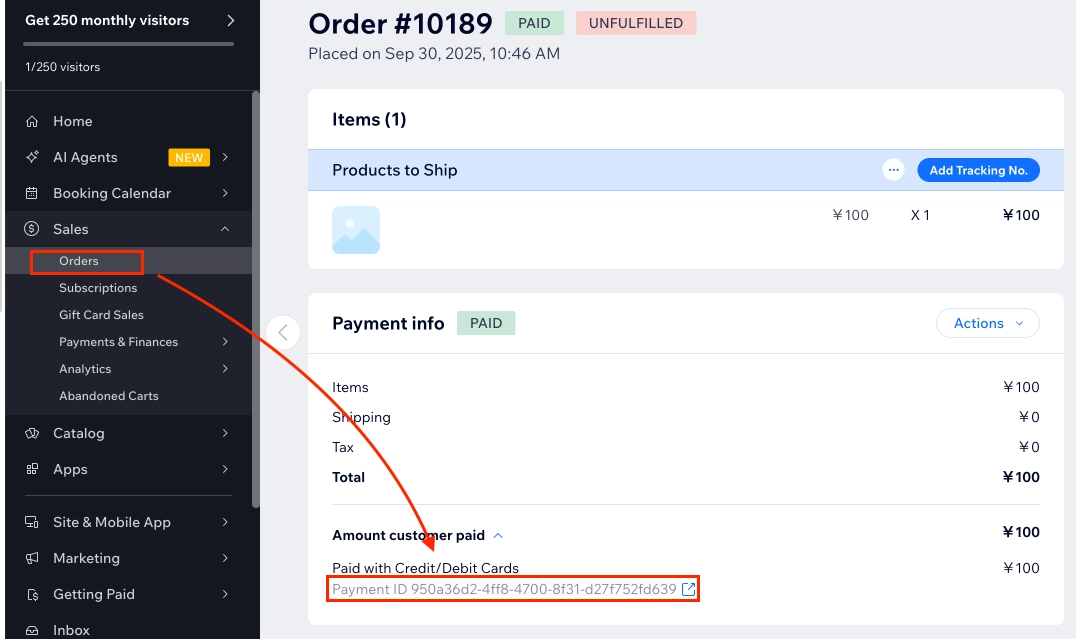
This is not the same as the Wix order number. The Payment ID Number is a unique identifier assigned when the corresponding KOMOJU transaction is created.
Step 2: Look Up the Transaction in KOMOJU
- Log in to your KOMOJU dashboard.
- Navigate to Payments.
- Open More Filters.
- Paste the Payment ID value into the Order ID field.
- Run the search to find the matching payment transaction.

Use the Filter tool on the Payments screen to see more options.
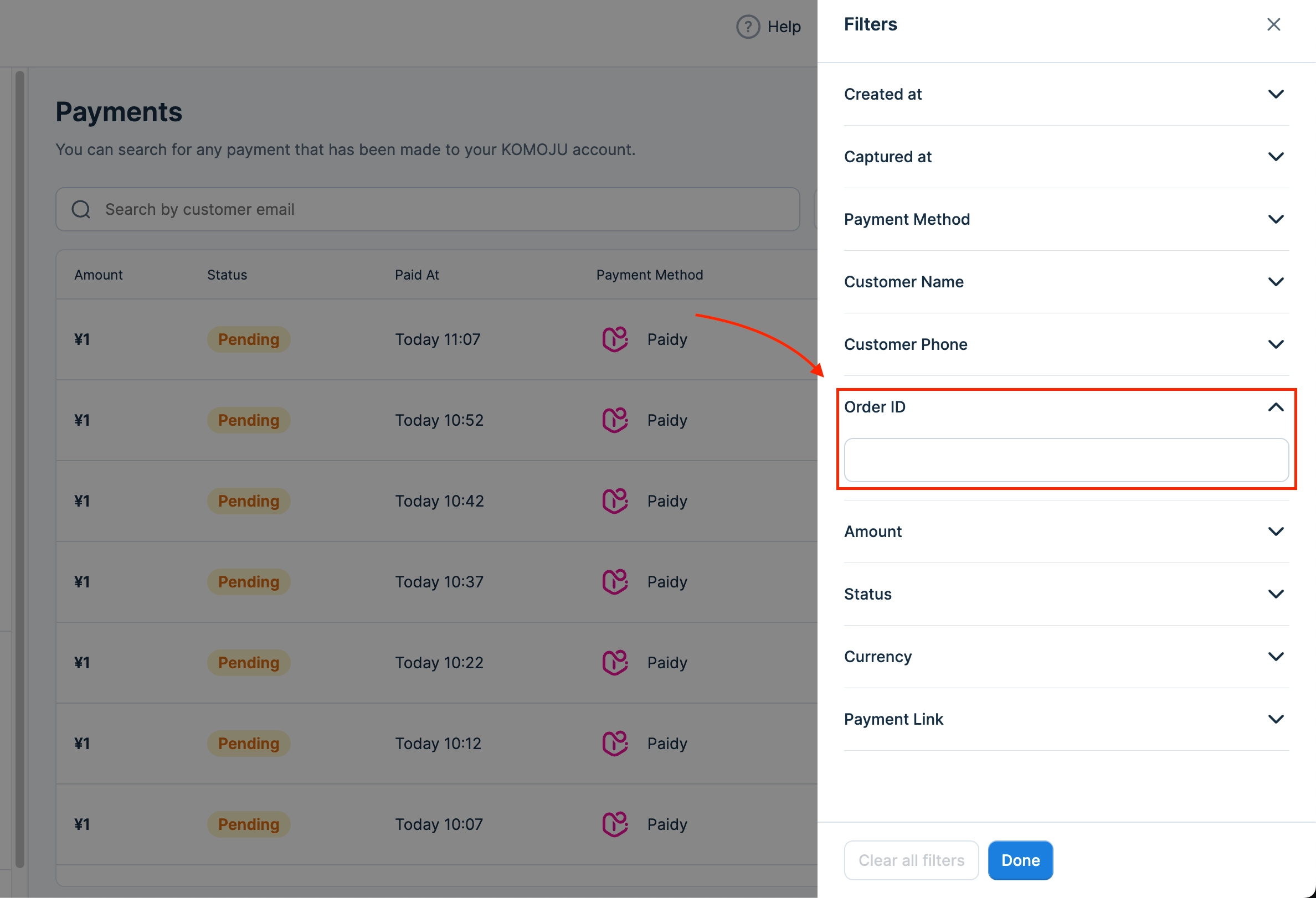
Once open, navigate to the Order ID section to input your Wix payment ID.
Order Lifecycle and Status
When a customer submits payment, Wix records the order and KOMOJU creates a transaction in a pending state while the payment is processed. Once KOMOJU confirms the payment, it marks the transaction as authorized or captured. This will be conveyed to Wix automatically, updating the order status on your end without any action from you.
One point to keep in mind though is that not all payments are instant. Convenience store and bank transfer payments require the customer to complete the payment after placing the order. During that window, the Wix order stays pending. Once KOMOJU receives confirmation that payment was made, the Wix order status updates on its own.
There are a few main exceptions to the automatic sync; refunds and cancellations. When you initiate a refund from the Wix dashboard, the status change doesn’t carry back to KOMOJU. This means that, while Wix may indicate a refund has occurred, no actual processing went through for it. In case of cancellations, please initiate the process through the KOMOJU details page for the relevant order. This will be automatically reflected back to Wix.
Processing fees apply to refunded transactions: Any transaction that reaches a captured state in KOMOJU is subject to processing fees, even if you later issue a refund.
Technical Considerations
Carrier Payments
KOMOJU supports carrier billing through docomo, Softbank, and au KDDI — payment methods that let customers charge purchases to their mobile phone bill. Each carrier requires a separate approval process from KOMOJU, which takes approximately 2 months per carrier.
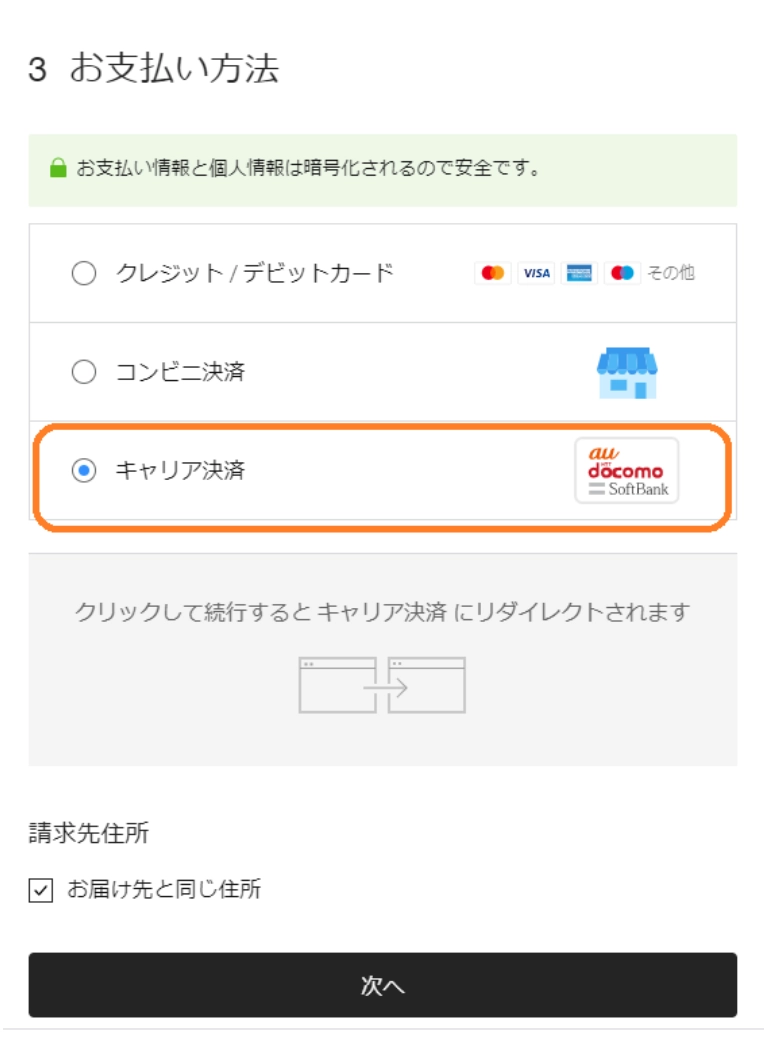
Carrier payments are grouped as one selection on the initial checkout screen.
The important thing to know on Wix: all three carriers are always shown at checkout, regardless of which ones you’ve been approved for. This is a Wix platform limitation so there’s no way to hide unapproved carriers from the checkout flow. If a customer selects a carrier you haven’t been approved for, they’ll see an error when they try to proceed.
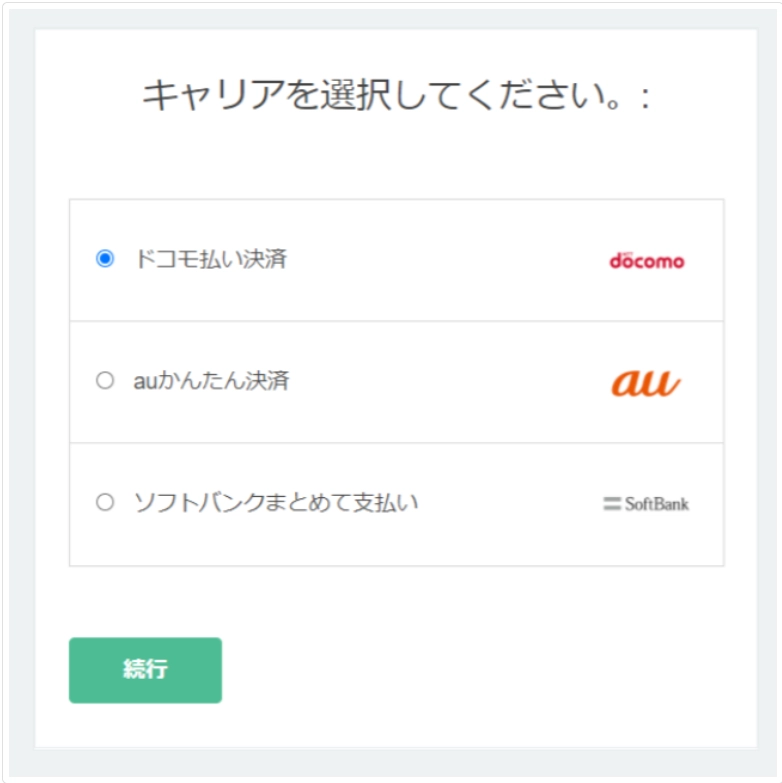
If a user selects an unsupported carrier payment option for your store then a payment error will occur.
If you haven’t been approved for all three carriers yet, consider noting which carrier payment options are available in your store communications or product pages to avoid customer confusion at checkout.
Carrier payments are not available for merchants who do not have a legal entity in Japan.
One KOMOJU Account Per Wix Site
Each Wix site requires its own individual KOMOJU account. If you operate multiple Wix stores, you’ll need a separate KOMOJU account for each one
Currency Must Match
Both your Wix store and your KOMOJU account must be set to JPY. A currency mismatch between the two platforms will cause transactions to fail at checkout.
What You Learned
- Learned how to find the Payment ID in Wix and use it to locate the corresponding transaction in KOMOJU.
- Understood that most order status updates sync automatically between platforms, but refunds and cancellations require manual actions via KOMOJU.
- Learned that all three carrier payment options (docomo, Softbank, au KDDI) always appear at checkout regardless of approval status and customers who select an unapproved carrier will see an error.
- Confirmed that each Wix site requires its own KOMOJU account and that both platforms must be set to JPY.
Updated 6 months ago