
Using Apple Pay (API)
Introduction
Apple Pay can be easily integrated using KOMOJU Hosted Pages or Hosted Fields.
However, integrating Apple Pay via the KOMOJU API requires additional setup to comply with Apple Pay’s merchant validation and security requirements.
This document describes the Apple Pay integration flow and provides step-by-step instructions for implementing Apple Pay using the KOMOJU API.
Integration Overview
To integrate Apple Pay using the KOMOJU API, complete the following steps:
- Register all domains and subdomains that will be used for Apple Pay, following the same procedure described on the Hosted Fields page
- Add the Apple Pay button to your checkout page.
- Perform merchant validation by calling KOMOJU’s Validate Merchant API from your backend.
- Create a payment by calling the KOMOJU Payments API with the Apple Pay payment token.
Sequence Overview
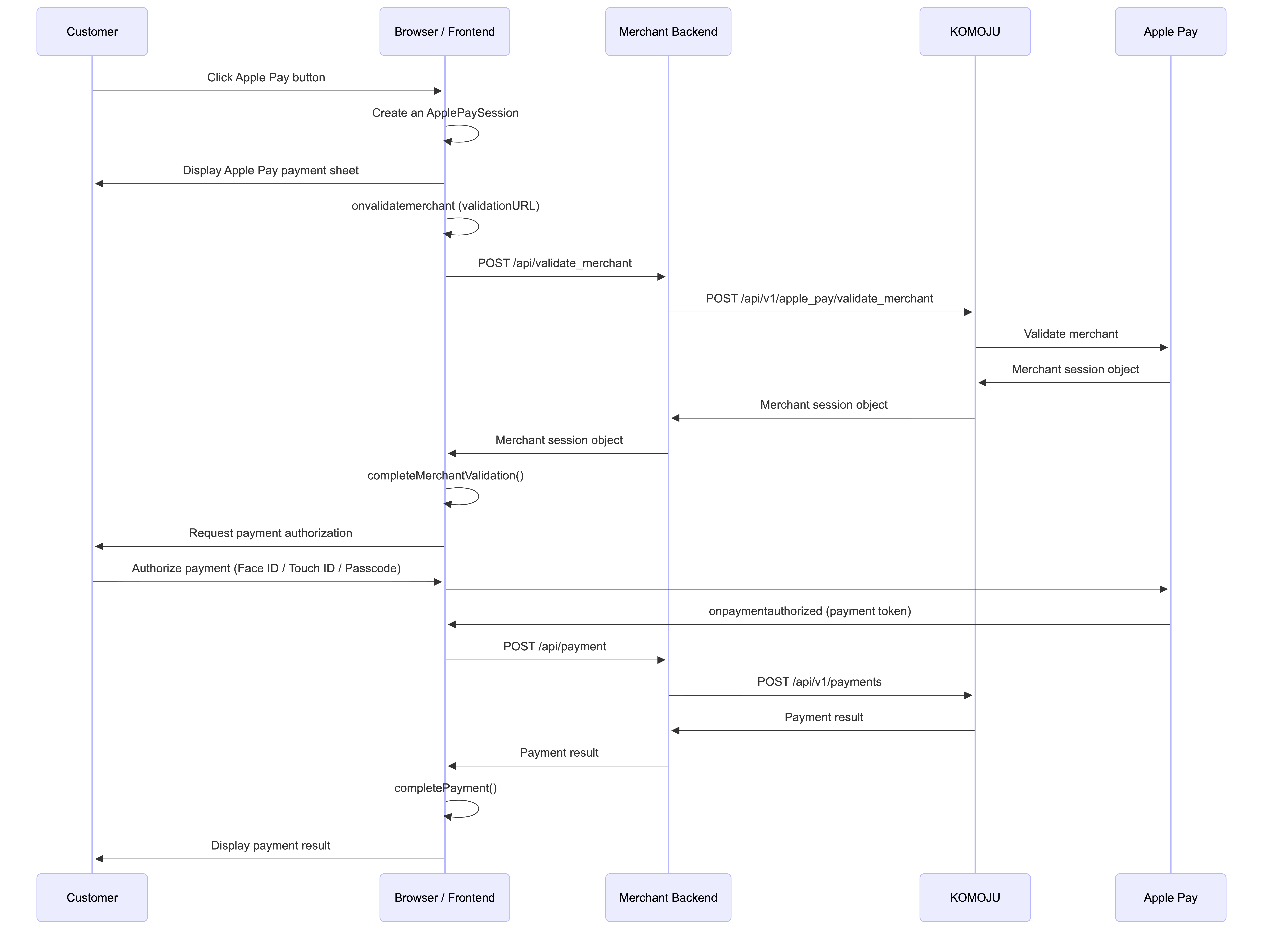
The following sequence diagram illustrates the Apple Pay integration flow using the KOMOJU API.
Implementation Guide
Frontend Integration
1. Add the Apple Pay button
Use Apple’s JavaScript library to render the Apple Pay button.
For information about button customization and implementation details, refer to Apple’s official demo:
Apple Pay on the Web Interactive Demo
2. Perform merchant validation
When an Apple Pay session is created, Apple invokes the onvalidatemerchant callback and provides a validationURL.
To proceed, the merchant must perform merchant validation by calling KOMOJU’s Validate Merchant API from the backend.
Merchant validation requires a secret key and must not be performed directly from the frontend.
Example:
const applePaySessionRequest = {
  countryCode: "JP",
  currencyCode: "JPY",
  merchantCapabilities: ["supports3DS"],
  supportedNetworks: ["visa", "masterCard"],
  total: {
    label: "Apple Pay Demo",
    amount
  }
};

const session = new ApplePaySession(1, applePaySessionRequest);

session.onvalidatemerchant = async event => {
  try {
    const response = await fetch("/api/validate_merchant", {
      method: "POST",
      headers: { "Content-Type": "application/json" },
      body: JSON.stringify({
        validation_url: event.validationURL
      })
    });

    if (!response.ok) {
      throw new Error("Merchant validation failed");
    }

    const merchantSession = await response.json();
    session.completeMerchantValidation(merchantSession);
  } catch (error) {
    session.abort();
  }
};
3. Handle payment authorization
After merchant validation completes successfully, the Apple Pay payment sheet is displayed on the customer’s device.
When the customer authorizes the payment using Face ID, Touch ID, or a device passcode, Apple invokes the onpaymentauthorized callback and provides a payment token.
This payment token must be sent to your backend to create a payment using the KOMOJU Payments API.
Example:
session.onpaymentauthorized = async event => {
  const { token } = event.payment;
  const amount = document.getElementById("amount").value;

  const result = await pay(amount, token);

  session.completePayment({
    status: result
      ? ApplePaySession.STATUS_SUCCESS
      : ApplePaySession.STATUS_FAILURE
  });
};
Backend Integration
1. Merchant validation endpoint
Create a backend endpoint that:
- Receives the
validation_urlfrom the frontend - Calls the KOMOJU Validate Merchant API using your secret key
- Returns the merchant session to the frontend
Example:
app.post("/api/validate_merchant", async (req, res) => {
  const { validation_url } = req.body;
  const domain_name = req.headers.host;

  try {
    const komojuResponse = await fetch(
      `${KOMOJU_ENDPOINT}/api/v1/apple_pay/validate_merchant`,
      {
        method: "POST",
        headers: headers(KOMOJU_SECRET_KEY),
        body: JSON.stringify({
          validation_url,
          domain_name
        })
      }
    );

    const komojuData = await komojuResponse.json();

    if (komojuResponse.status !== 200) {
      return res.status(400).json({ error: "Bad Request" });
    }

    return res.json(komojuData);
  } catch (error) {
    return res.status(500).json({ error: "Internal Server Error" });
  }
});
2. Create a payment
To create an Apple Pay payment, call the KOMOJU Payments API with:
payment_details.typeset toapple_paypayment_details.tokenset to the Apple Pay token received from the frontend
Example:
app.post("/api/payment", async (req, res) => {
  const { currency, amount, token } = req.body;

  const komojuPaymentRequest = {
    currency,
    amount,
    tax: 0,
    payment_details: {
      type: "apple_pay",
      token
    }
  };

  try {
    const komojuResponse = await fetch(
      `${KOMOJU_ENDPOINT}/api/v1/payments`,
      {
        method: "POST",
        headers: headers(KOMOJU_SECRET_KEY),
        body: JSON.stringify(komojuPaymentRequest)
      }
    );

    const komojuPayment = await komojuResponse.json();

    if (komojuResponse.status !== 200) {
      return res.status(400).json({ error: "Bad Request" });
    }

    return res.json(komojuPayment);
  } catch (error) {
    return res.status(500).json({ error: "Internal Server Error" });
  }
});
API Reference: validate_merchant
The specifications of the KOMOJU Payments API are as follows.
Endpoint
POST /api/v1/apple_pay/validate_merchantRequest Parameters
| Name | Type | Description |
|---|---|---|
| validation_url | string | The validationURL value provided in the onvalidatemerchant callback of ApplePaySession. |
| domain_name | string | The domain name of the page that displays the Apple Pay button. This domain must be registered in the KOMOJU dashboard. |
Response
Returns the merchant session object issued by Apple.
Updated 8 months ago