
Understanding KOMOJU Orders on Woocommerce
Understanding KOMOJU Orders on WooCommerce
Overview
This guide explains how KOMOJU payments connect to WooCommerce orders — including the relationship between the two platforms, where to find payment information in each dashboard, and how order statuses stay in sync.
Prerequisites
- Have read Getting Started with WooCommerce
- Be familiar with the KOMOJU platform
- Be familiar with the WooCommerce platform
Understanding the Order Relationship
KOMOJU tracks payments; WooCommerce tracks orders. Every WooCommerce order corresponds to one KOMOJU payment ID.
- WooCommerce manages order details: the customer, items purchased, shipping, and fulfillment
- KOMOJU handles payment processing and holds the authoritative payment status
When a customer completes a payment, KOMOJU notifies WooCommerce via webhook, and the order status in WooCommerce updates automatically.
Payments that are initiated but not yet completed (for example, a customer who starts a konbini payment but hasn't paid at the store yet) exist in KOMOJU as pending. WooCommerce will not reflect these until the payment is finalized.
WooCommerce Order Statuses and KOMOJU Payments
The table below maps KOMOJU payment statuses to their WooCommerce equivalents.
| KOMOJU Payment Status | WooCommerce Order Status |
|---|---|
| Authorized |
|
| Captured |
|
| Pending | Pending payment |
| Expired | Cancelled |
| Refunded | Refunded |
| Failed | no change in status |
The on-hold setting can be enabled on the KOMOJU API settings page in WooCommerce.
When enabled, payments authorized through KOMOJU will be assigned the On hold status. When disabled, they will be assigned the Pending payment status.
Finding Order IDs in WooCommerce and KOMOJU
Finding the KOMOJU Payment ID in WooCommerce
The KOMOJU payment ID can be found by navigating to the order page on WooCommerce. It is displayed in the following locations:
- Order details
- Order notes
- Custom fields > komoju_payment_id
You may also navigate directly to the payment on the KOMOJU dashboard by clicking View payment on KOMOJU under Order Details.
Finding a WooCommerce Order in the KOMOJU Dashboard
From the KOMOJU Dashboard, navigate to Payments. You can search or filter by the WooCommerce Order ID to locate the corresponding KOMOJU payment record. You can also search by email address to find all orders for a specific customer.
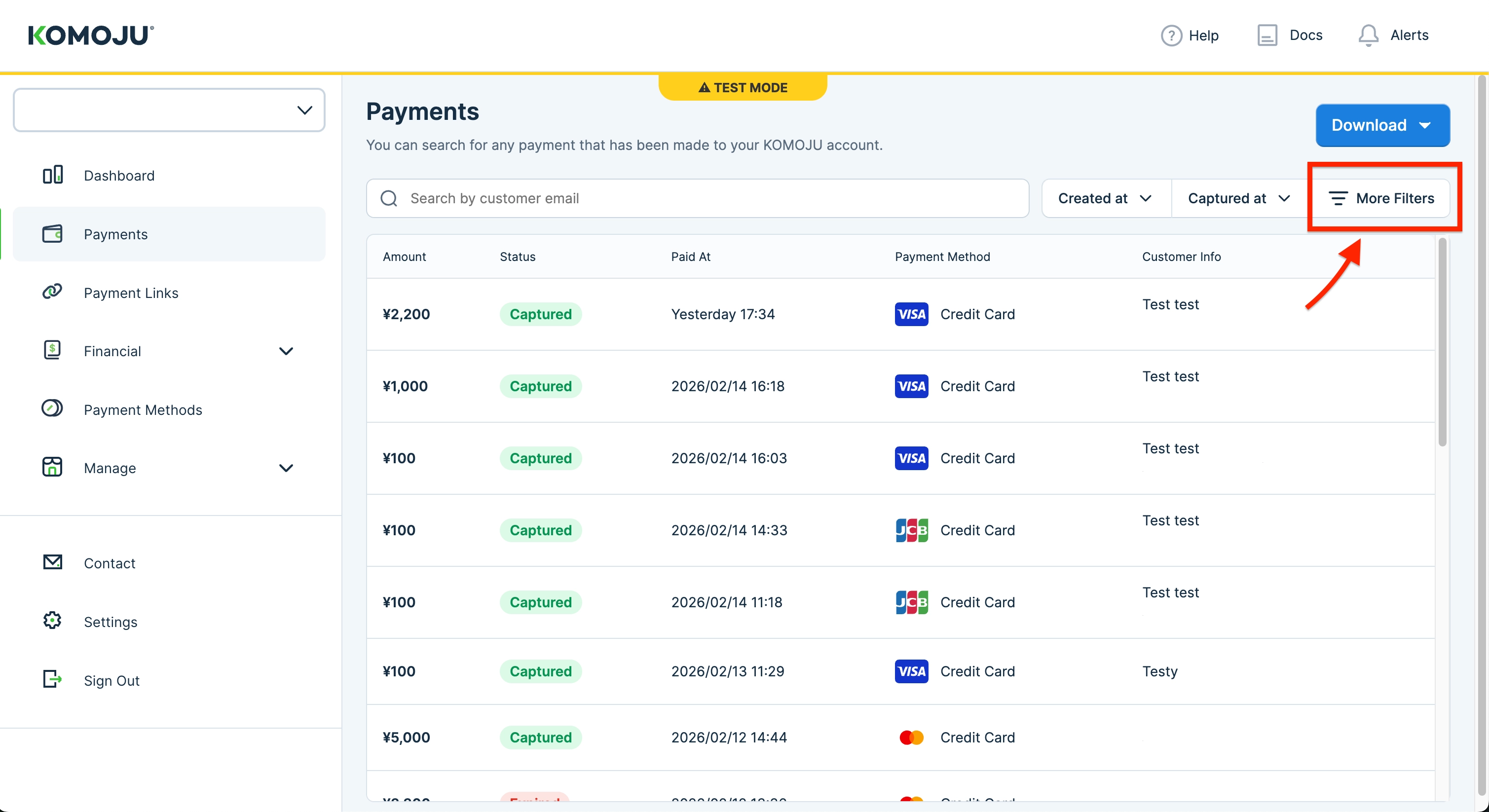
Use the Filter tool on the Payments screen to see more options.
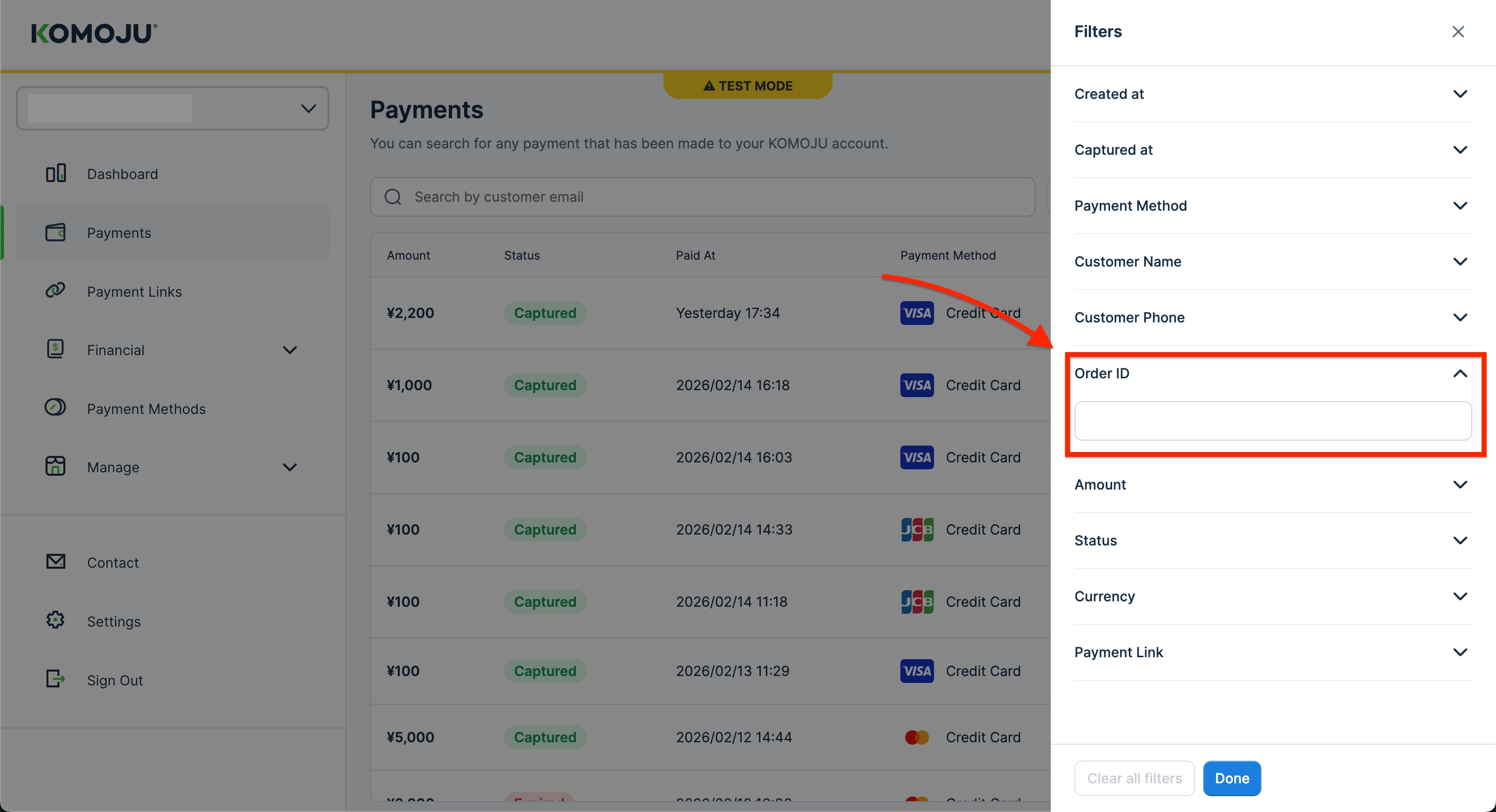
Once open, navigate to the Order ID section to input your WooCommerce order ID.
Order Lifecycle
In general, WooCommerce orders generally follow one of these flows:
-
Immediately captured payments (credit card for example):
- Customer initiates checkout → WooCommerce order created in Pending payment status
- Customer pays → captured payment webhook sent → WooCommerce order updates to Processing or Completed status
-
Delayed payment methods (konbini, bank transfer for example):
- Customer initiates checkout → WooCommerce order created in Pending payment or On hold status (if on-hold setting is enabled)
- Customer pays at store/bank → KOMOJU notifies WooCommerce via webhook → status updates to Processing or Completed status
- Payment expires → status updates to Cancelled
What You Learned
In this guide, you:
- Understood the 1:1 relationship between WooCommerce orders and KOMOJU payment IDs
- Learned where to find payment information in both dashboards
- Understood how order statuses sync between platforms
Updated 6 months ago
What’s Next
Continue to Common KOMOJU Features on WooCommerce — configure checkout and inventory features specific to WooCommerce.