
Getting Started with Wix
Overview
This guide walks you through connecting KOMOJU to your Wix store and going live with Japanese payment methods. If you’re setting up the integration for the first time, this is where to start.
By the end, you’ll have KOMOJU connected to Wix with your approved payment methods enabled and your store ready to accept real payments. KOMOJU adds local Japanese payment options that Wix doesn’t offer natively — convenience store payments, bank transfer, carrier billing, and more — making it possible to serve customers who prefer those methods.
Prerequisites
- A Wix store with your business location set to Japan and store currency set to JPY.
- A KOMOJU account with account currency set to JPY.
- A KOMOJU account approved for Live mode with at least one payment method active, and your Live mode Secret Key ready to enter.
Understanding the Wix-KOMOJU Integration
The KOMOMU-Wix integration is a straightforward setup that allows Wix to handle your storefront and orders while KOMOJU handles payment processing. The two connect through a single API key that can be connected to the KOMOJU payment settings on Wix. Once connected, your KOMOJU approved payment methods become available at checkout in your Wix store.
However, there a few things are worth knowing before you start. Payment methods are managed on the KOMOJU side with each one (credit card, convenience store, bank transfer, etc.) requiring individual approval from KOMOJU before it can be used. Wix simply reflects what’s active in your KOMOJU account.
In normal cases, order statuses sync automatically when a payment is settled. However, please note that refunds are an exception — if you refund through KOMOJU, you’ll also need to update the order status in Wix manually. Along with this constraint, there’s also no test mode available on Wix; all transactions run in Live mode from the start.
Connecting Your KOMOJU Account to Wix
Before you begin make sure your KOMOJU account is approved and your Secret Key is ready. You can find your Secret Key in the KOMOJU dashboard under Settings > API Keys.
Step 1: Open Accept Payments in Wix
In your Wix site dashboard, go to your site settings and then click on Accept Payments in menu.
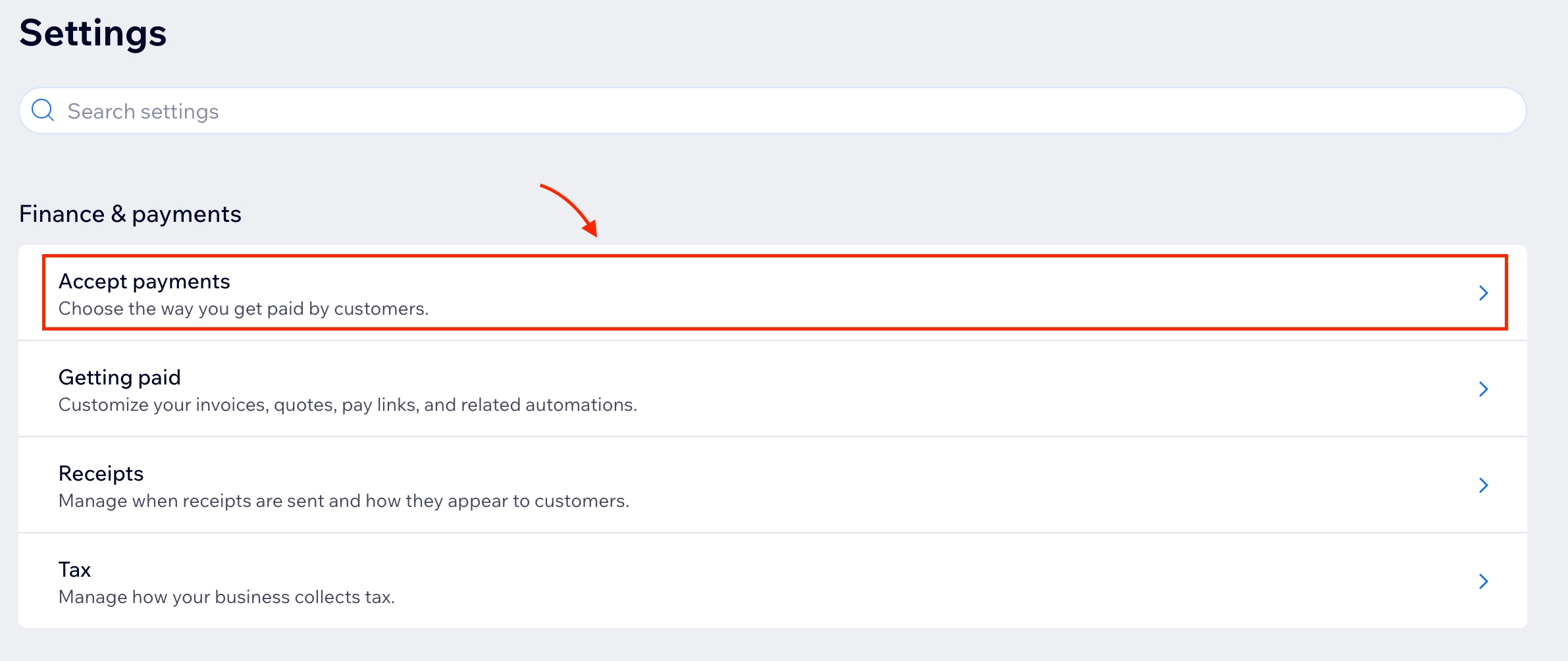
In the top-right corner of the page, confirm your business location is set to Japan.

If it’s set to another country, KOMOJU will not appear as a payment option.
Step 2: Find KOMOJU in the Payment Options List
Click “See More Payment Options” to expand the full list of available payment providers.
Locate KOMOJU in the list and click “Connect”.
Step 3: Enter Your KOMOJU Secret Key
You’ll be prompted to enter your KOMOJU Secret Key.
Log in to your KOMOJU dashboard, navigate to Settings > API Keys, and copy your Secret Key (not your Public Key).
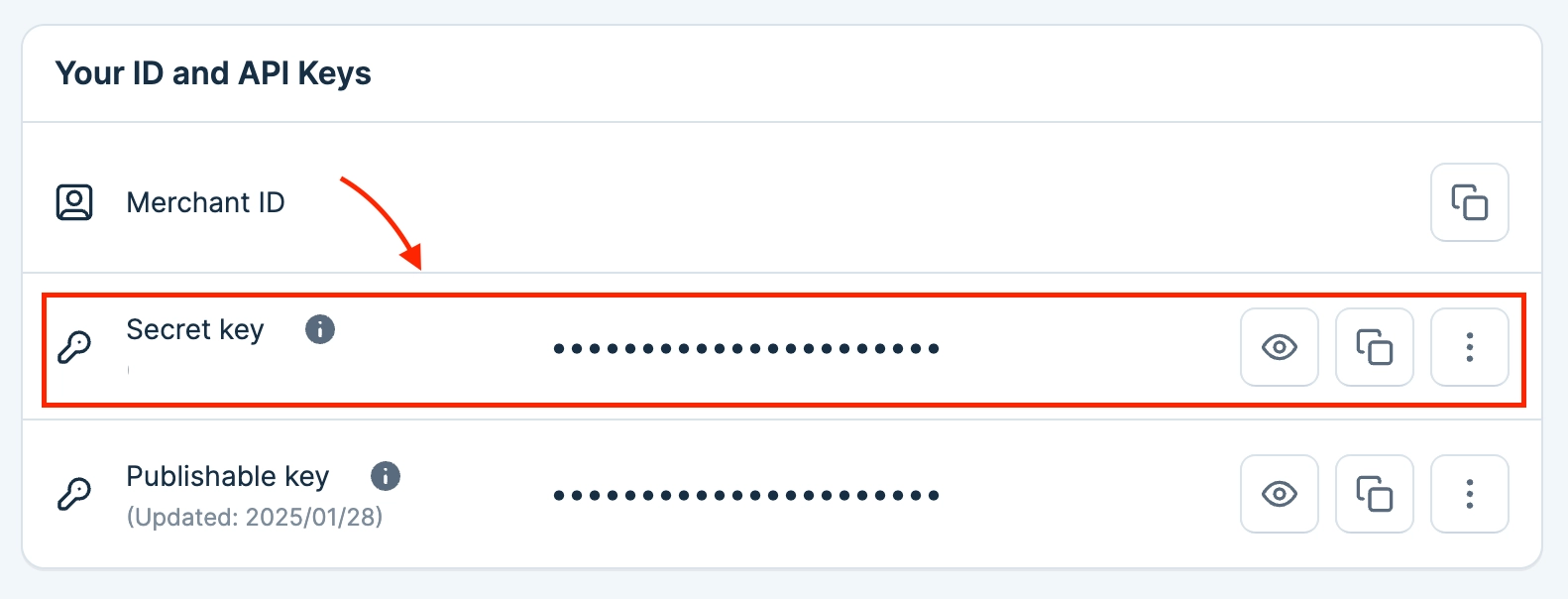
Paste the Secret Key into the field in Wix and click “Connect”.
Your Wix account currency and your KOMOJU account currency must both be set to JPY. If they don’t match, transactions will be declined at checkout.
Step 4: Enable Your Payment Methods
Once connected, your approved KOMOJU payment methods will appear in Wix.
To manage your orders, navigate to the Accept Payments screen and click on Manage next on the KOMOJU payment method.
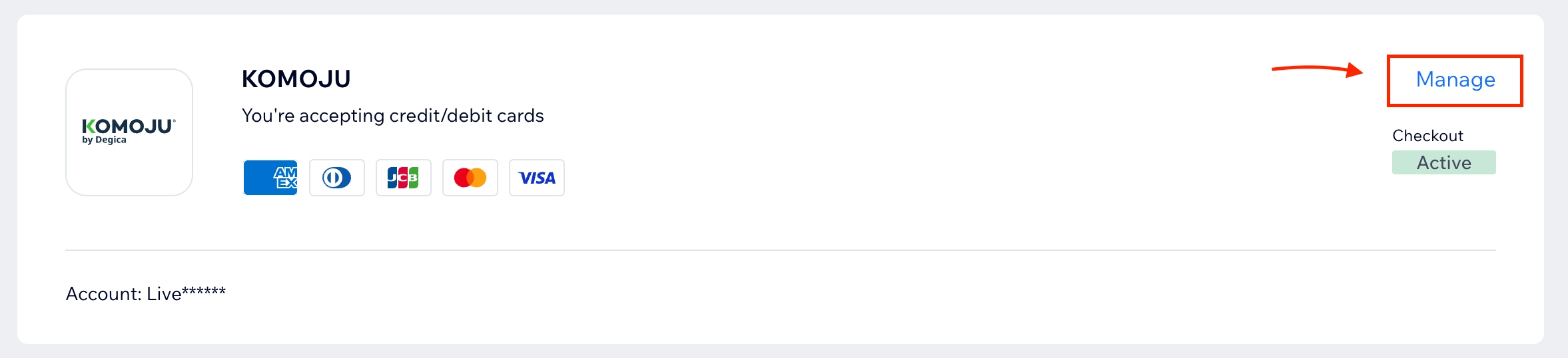
Once the management screen has opened, you can then use the toggles to enable the payment methods you want to offer in your store.
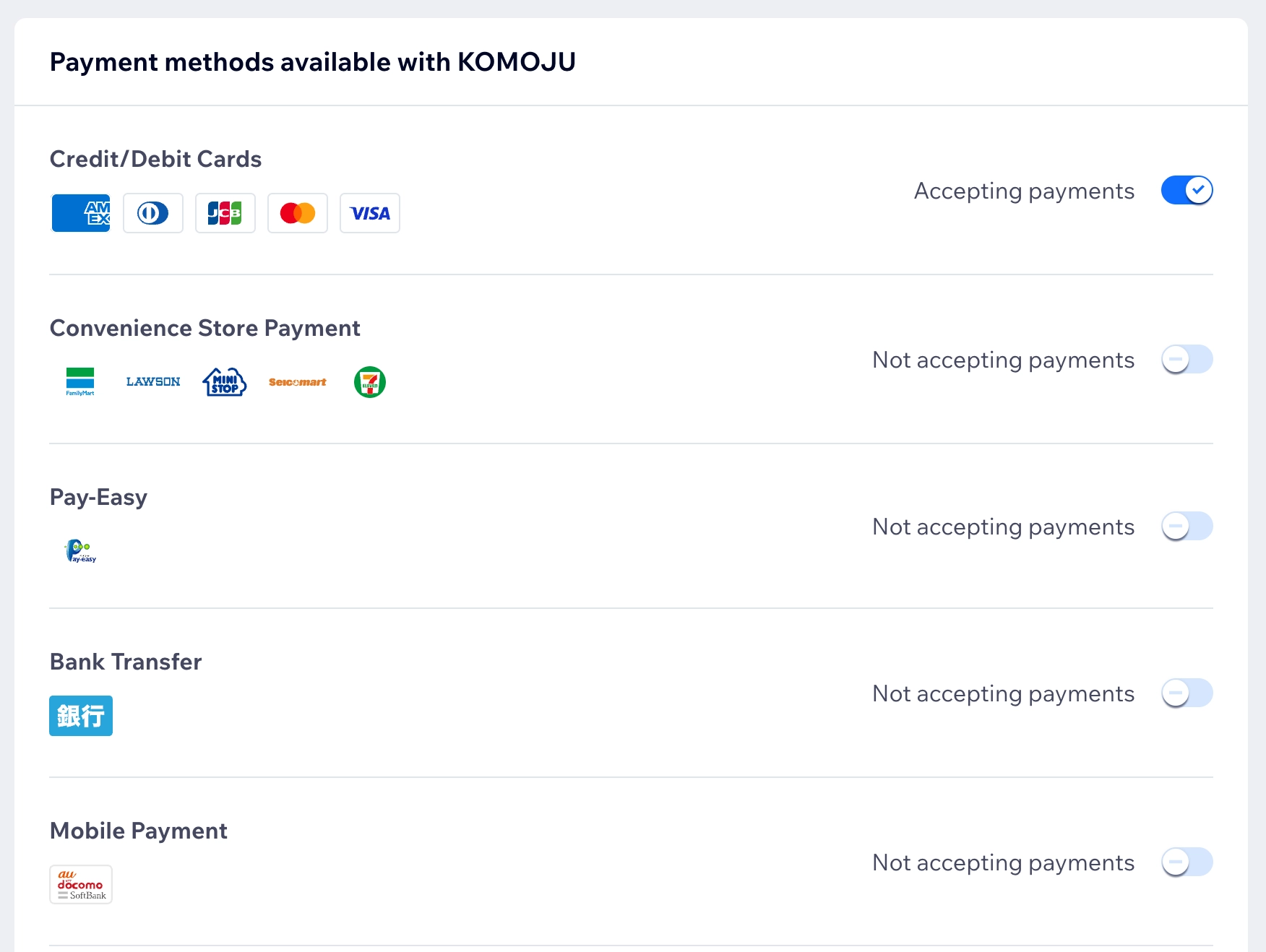
Not all payment methods will be available immediately. Each method requires separate review and approval by KOMOJU. Only toggle on methods that are already active in your KOMOJU account.
Step 5: Confirm the Connection
Return to the Accept Payments page. KOMOJU should now appear as an active payment provider with a green status indicator.
Adding payment methods later: As additional payment methods are approved in KOMOJU, you can enable them in Wix at any time. Go to Accept Payments, click “Manage” next to KOMOJU, and toggle on the new method.
Each Wix site requires its own individual KOMOJU account. If you operate multiple Wix stores, you’ll need a separate KOMOJU account for each one.
Testing the Integration
Due to a Wix platform specification, KOMOJU’s Test mode cannot be used with Wix. All transactions on Wix run in Live mode only.
Because there is no sandbox environment, you cannot simulate a payment before going live. Instead, focus on confirming that your Live mode connection is working correctly once real orders begin coming in.
What to check after your first real order:
When a customer completes a purchase, KOMOJU processes the payment independently. Check both systems to confirm the order has been captured correctly:
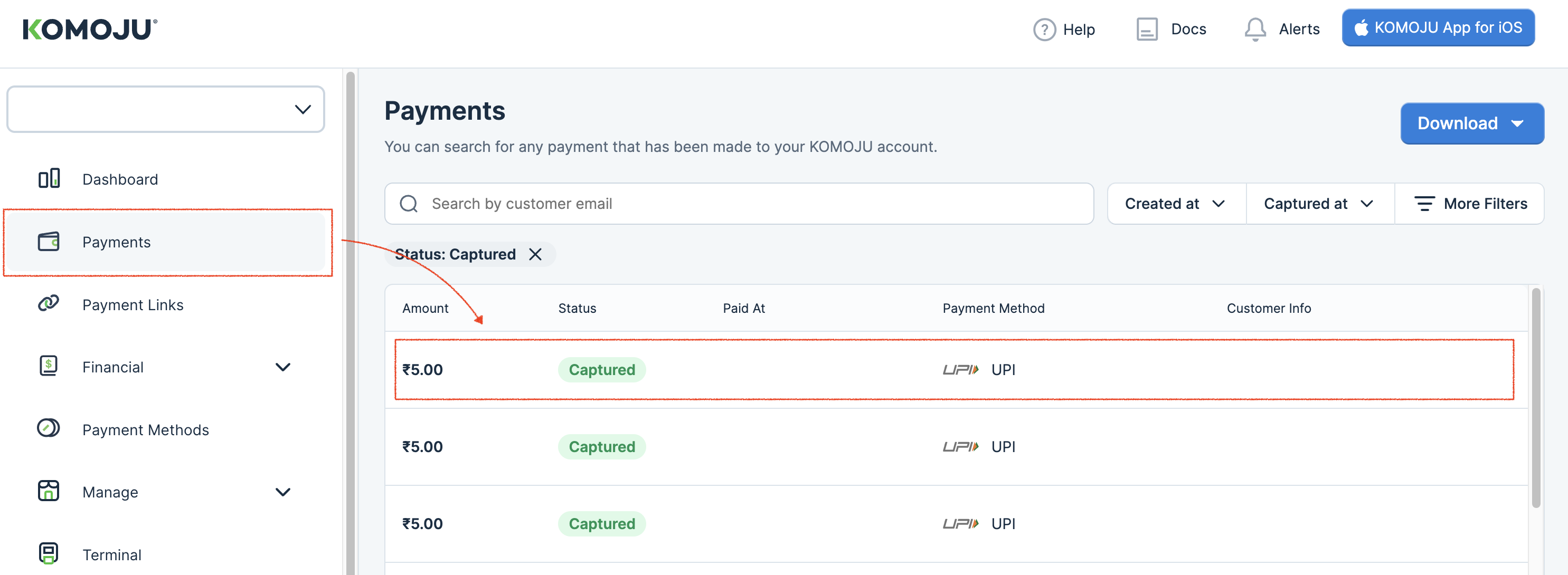
In the KOMOJU dashboard, navigate to Payments and confirm the order status shows as Captured.
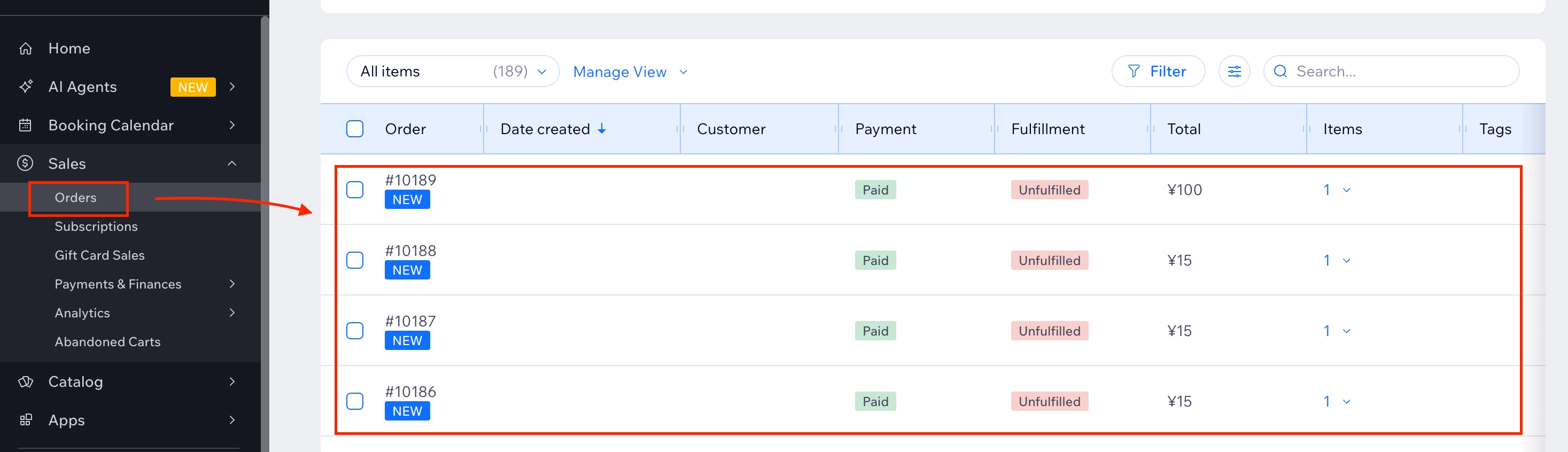
In your Wix dashboard, navigate to Orders and confirm the order has been updated. Wix syncs automatically once KOMOJU marks a transaction as paid.
You can configure KOMOJU to send you an email each time a payment is completed. This gives you a real-time signal that a transaction was captured successfully. To set this up, go to your KOMOJU dashboard under Settings > Your email settings.
If you need to refund a transaction:
Refunds must be initiated from the KOMOJU dashboard. However, the refund status does not automatically sync back to Wix so you will need to manually update the order status in your Wix dashboard after completing the refund in KOMOJU.
Any transaction that reaches a settled state in KOMOJU is subject to processing fees, even if you later issue a refund. This applies whether the order was a genuine customer purchase or an accidental transaction.
Going Live
Before your store can accept real payments, KOMOJU must review and approve your account for Live mode. This is a separate process from the initial connection setup.
Step 1: Confirm Your Live Mode Approval
Log in to your KOMOJU dashboard and check the bottom of the left sidebar. If your review is complete, you will see a toggle that lets you switch between Test mode and Live mode.
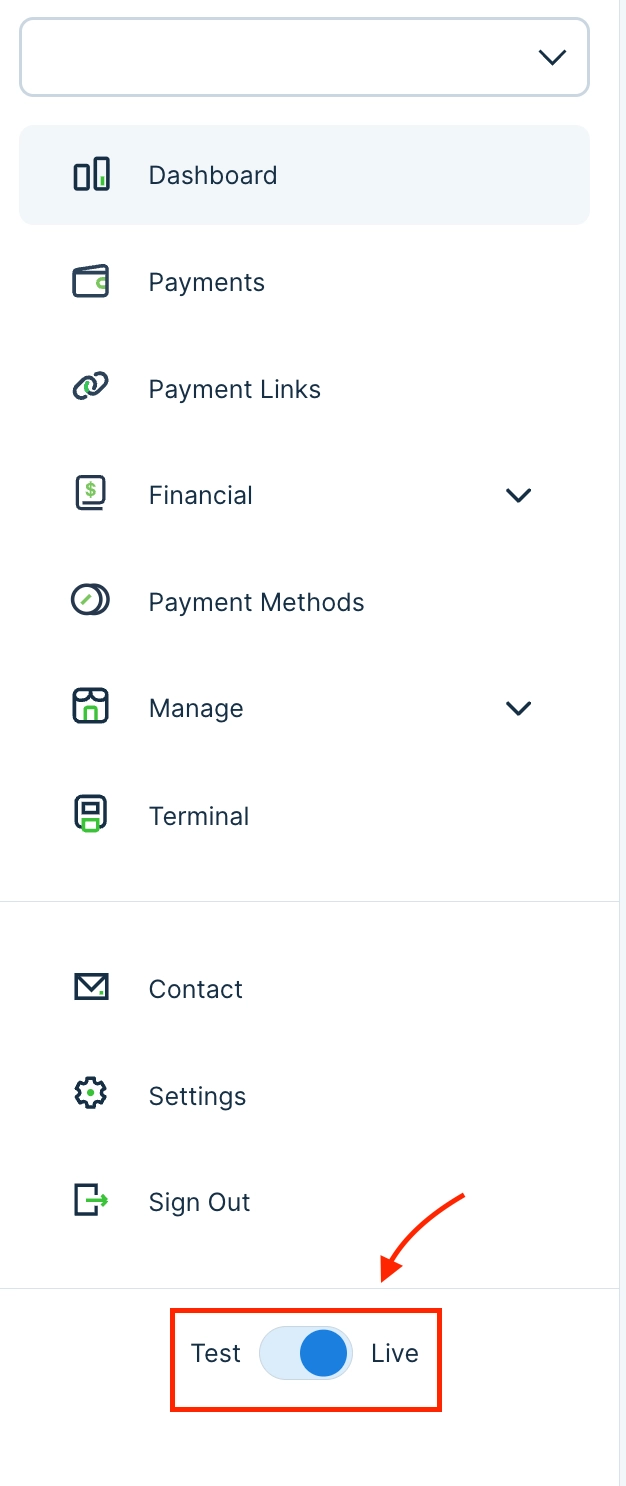
If the toggle is not visible then your live mode review is not yet complete. Contact KOMOJU support if you believe your review should be finished.
Step 2: Get Your Live Mode Secret Key
Switch KOMOJU to Live mode using the toggle in the sidebar.
Navigate to Settings > API Keys and copy your Secret Key (not your Public Key).
Ensure that you use the Live mode key, not the Test mode key. Each mode has its own Secret Key. If you enter your Test mode Secret Key into Wix, payments will fail for all payment methods with a misleading “credit card error” message. Make sure KOMOJU is set to Live mode before copying the key.
Step 3: Update Your KOMOJU Connection in Wix
In your Wix site dashboard, go to Settings > Payment Methods.
Find KOMOJU in the list and click “Manage”.
In the Secret Key field, enter the Live mode Secret Key you copied from KOMOJU and click Save.
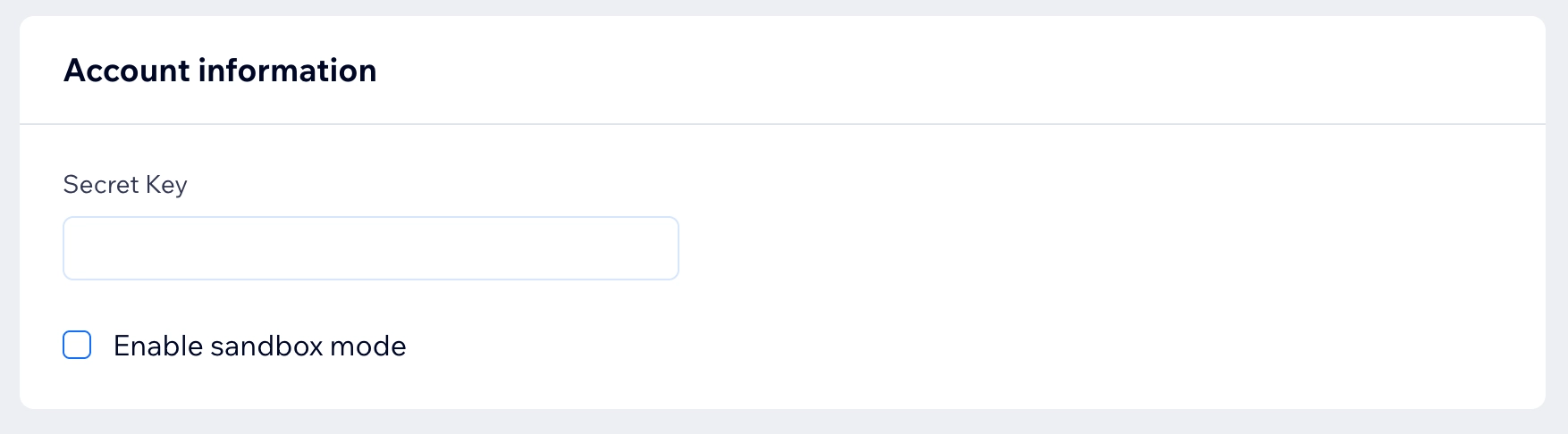
Step 4: Confirm the Connection
Wix will display a green “Active” status next to KOMOJU when the Live mode connection is active.
Note that only approved payment methods will be available for use. Even after going live, only payment methods that KOMOJU has individually approved will work at checkout. If a payment method is toggled on in Wix but not yet approved in KOMOJU, it will fail. You can check which methods are approved in your KOMOJU dashboard under Payment Methods.
What You Learned
- Connected KOMOJU to Wix using your Live mode Secret Key.
- Enabled your KOMOJU approved payment methods in Wix, and learned that each method requires individual approval before it can go live.
- Confirmed that both platforms must be set to JPY and your Wix business location must be set to Japan.
- Learned that order statuses sync automatically when a payment settles, but refunds issued in KOMOJU must be reflected manually in Wix.
- Understood that Wix does not support KOMOJU’s test mode — all transactions run in Live mode from the start.
- Noted that each Wix site requires its own individual KOMOJU account.
Updated 6 months ago