
Understanding KOMOJU Orders on Shopify
Overview
This article explains how KOMOJU payments connect to Shopify orders and helps you understand the relationship between these two systems. You’ll learn about how Shopify and KOMOJU utilize payment IDs to maintain a 1:1 relationship between orders and payments .
We’ll also cover where to find payment information in both platforms, how the payment lifecycle affects visibility in each system, and why pending payments initially appear only in KOMOJU. By the end of this article, you’ll be able to navigate between both platforms and understand how they synchronize payment information.
Prerequisites
- Have read Getting Started with KOMOJU on Shopify (Part 1 of this series)
- Be familiar with the KOMOJU platform
- Be familiar with the Shopify platform
Understanding the Order Relationship
At its simplest, the core concept of this integration is that KOMOJU tracks payments, and Shopify tracks orders where one Shopify order corresponds to one KOMOJU payment ID.
In this relationship Shopify manages order level information like items purchased, shipping details, order totals, and fulfillment while KOMOJU manages payment information such as payment method selection and payment processing.
Once a payment is authorized or captured via KOMOJU, the KOMOJU payment ID appears in the Shopify order timeline with corresponding life cycle updates. On KOMOJU’s side, you will be able to view both the KOMOJU payment ID and Shopify Order ID via the payment’s details page on KOMOJU’s dashboard.
Pending payments appear in KOMOJU immediately but won’t show in the Shopify order timeline until the payment is authorized. KOMOJU sends status updates to Shopify as the payment progresses through its lifecycle.
Finding Order IDs On Shopify and KOMOJU
When you need to check payment information for a Shopify order, you’ll find it on the order timeline within the order details page. This is where merchants typically review payment status when looking at their orders.
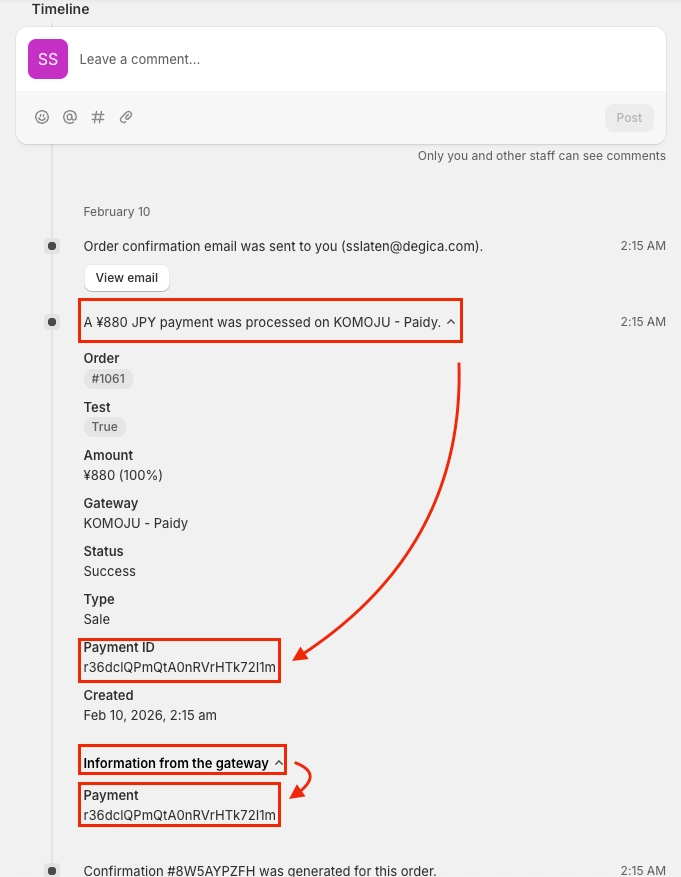
As the payment progresses through its lifecycle, you’ll see updates appear in the timeline showing the status changes, like when a payment transitions from authorized to captured. The KOMOJU payment ID is displayed directly in these timeline entries, giving you a quick reference point to jump into the KOMOJU dashboard for more detailed payment information.
These timeline updates sync automatically as the payment status changes in KOMOJU, so the Shopify order timeline reflects the current state of the payment.
You can find easily find payments that correlate to a Shopify order by searching on the KOMOJU Dashboard’s Payments screen.
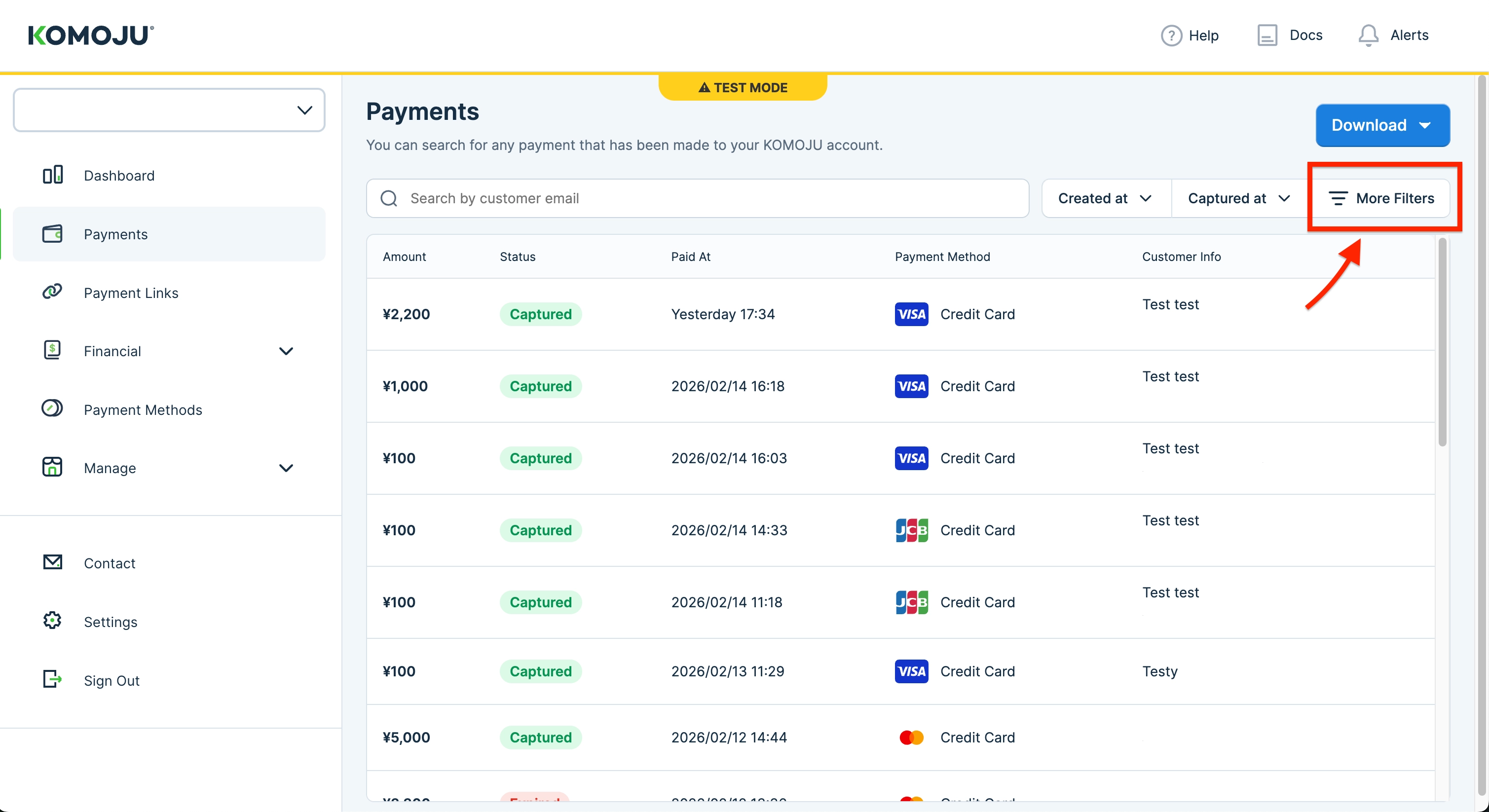
Use the Filter tool on the Payments screen to see more options.
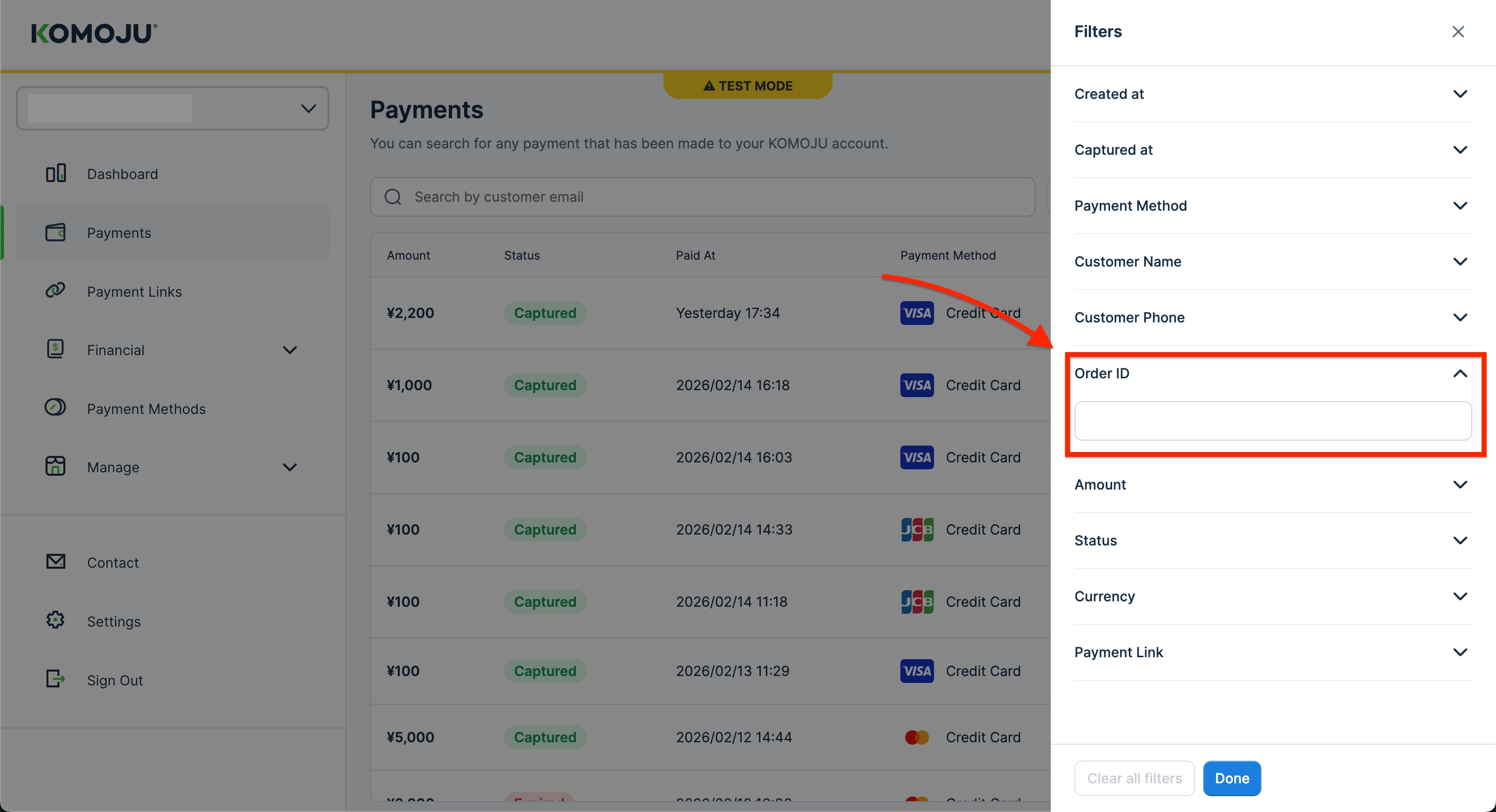
Once open, navigate to the Order ID section to input your Shopify order ID.
Order Lifecycle and Status
While there are various payment statuses on KOMOJU, it is important to note that when a payment is pending, it means the customer hasn’t finished checkout yet.
During this pending phase, the payment only appears in KOMOJU and you will not be able to see it in Shopify’s order timeline. This happens because KOMOJU doesn’t send a mutation to Shopify until the payment process is completed.
Once the payment is no longer pending, it will appear in the Shopify order timeline, and from that point forward, both systems will show the payment information.
If you’re looking for a recent payment in Shopify and don’t see it, check the KOMOJU dashboard. The payment might still be pending, which is why it hasn’t appeared in Shopify yet.
Technical Considerations
One timing consideration to be aware of involves payment session expiration. Both Shopify and KOMOJU handle payment expiration independently, and understanding how these interact can help you avoid unexpected synchronization issues.
Shopify keeps payment sessions open for 72 hours after creation. If the payment is not completed within that window, Shopify will automatically expire the payment's status on their side. Please note that the Shopify order will still be open overall.
However, KOMOJU's payment methods' expiration settings can differ per payment method.
Some payment methods on KOMOJU have configurable expiration times that you can adjust in the KOMOJU dashboard, while others use fixed timeframes based on the payment method’s requirements.
If you wish to ensure that KOMOJU and Shopify have aligning statuses when expirations occur, it is recommended to cancel the order on Shopify when it expires. For payments made via Convenience Store or Pay-easy, it is also recommended to cancel the order on KOMOJU's dashboard as well to help prevent payments past Shopify's expiration date.
Please see our in depth help page below for more information:
What You Learned
- Learned that KOMOJU tracks payments while Shopify tracks orders, connected through payment IDs
- Discovered where to find order IDs in both the KOMOJU dashboard and Shopify admin
- Understood that the typical relationship is 1:1 between Shopify orders and KOMOJU payment IDs
- Learned that payment information appears in the Shopify order timeline once authorized
Updated 3 months ago
What’s Next
Learn about common features used between both platforms in our next article in this Shopify series.